# Animations

{% embed url="<https://youtu.be/vJ1r-dtsMBo>" %}

Make your content pop with stunning visual effects. Add animations, hover effects, and click effects to specific elements for an engaging and dynamic user experience.

After selecting an element or section, select the type of animation you want to apply to it.

## Animation type

FoxStudio offers 4 animation types, based on when you want them to appear.

### Page load animation

An animation starts the moment your page loads.

<figure><img src="https://1749964694-files.gitbook.io/~/files/v0/b/gitbook-x-prod.appspot.com/o/spaces%2FfgpgvtRaQLc36GYyIktZ%2Fuploads%2FqjQfmpUQe596KIshTv72%2Fikkk.gif?alt=media&#x26;token=5109a7f5-2128-4679-b247-e60bdb2da2e9" alt=""><figcaption></figcaption></figure>

### Entrance animation

An entrance animation appears when the element first enters into view, instantly grabbing attention.

&#x20;

<figure><img src="https://1749964694-files.gitbook.io/~/files/v0/b/gitbook-x-prod.appspot.com/o/spaces%2FfgpgvtRaQLc36GYyIktZ%2Fuploads%2FFhZTAFELztveby6IkATW%2Fanimationentrance-ezgif.com-video-to-gif-converter%20(1).gif?alt=media&#x26;token=e8e2eaba-64d0-4b4a-9908-1e2b772d23c1" alt=""><figcaption></figcaption></figure>

### Hover animation

Hover animation is triggered when visitors hover over an element.

<figure><img src="https://1749964694-files.gitbook.io/~/files/v0/b/gitbook-x-prod.appspot.com/o/spaces%2FfgpgvtRaQLc36GYyIktZ%2Fuploads%2F0VbZs2FdtpjcyIVJBJpv%2Fanimationhover-ezgif.com-video-to-gif-converter%20(1).gif?alt=media&#x26;token=b08cbd07-3751-4aca-8f5e-dcbc80034a98" alt=""><figcaption></figcaption></figure>

### Click animation

Click animation is triggered when visitors click an element.

<figure><img src="https://1749964694-files.gitbook.io/~/files/v0/b/gitbook-x-prod.appspot.com/o/spaces%2FfgpgvtRaQLc36GYyIktZ%2Fuploads%2FtEhRbe3rPoKl3YnGiIPB%2Fanimationclick-ezgif.com-video-to-gif-converter%20(1).gif?alt=media&#x26;token=526c0e3d-741a-48e5-8548-ae055deac7da" alt=""><figcaption></figcaption></figure>

## How to add an animation

{% hint style="success" %}
**Steps:**

1. Click on the element or section you want to add an animation to.
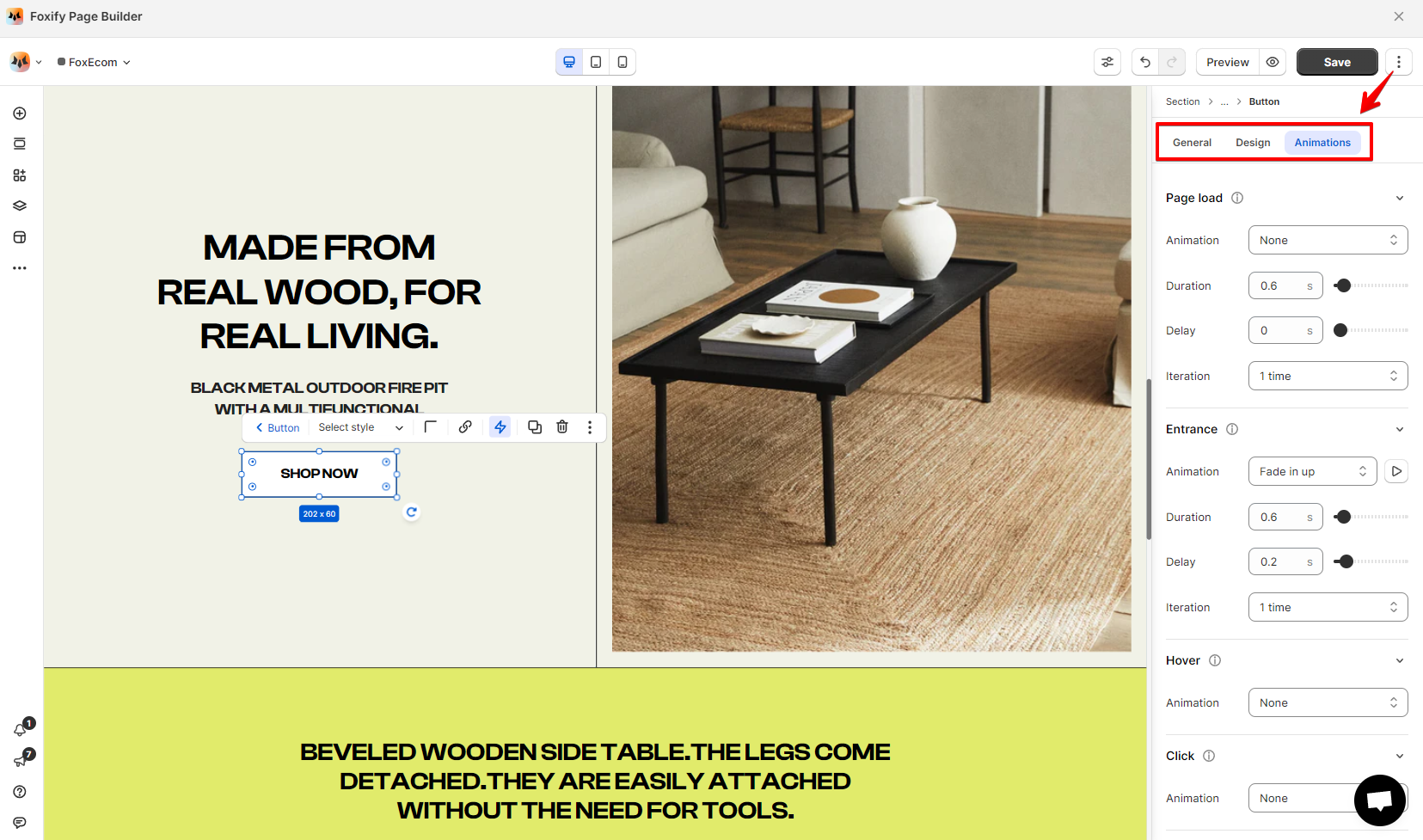
2. In the I**nspector** panel, select the **Animations** tab and choose the animation type.
3. Customize the settings for the animation like duration, delay, and iteration (optional).
4. **Save** the changes.
   {% endhint %}

{% hint style="info" %}
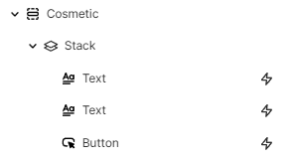
The element having an animation setup can be easily distinguished with a lightning bolt icon ![](https://1749964694-files.gitbook.io/~/files/v0/b/gitbook-x-prod.appspot.com/o/spaces%2FfgpgvtRaQLc36GYyIktZ%2Fuploads%2FPMoeP01gIAqTOlyKLj8A%2Fimage.png?alt=media\&token=cd4d7778-2249-4600-8905-31a9fc9c0a6e)next to it in the Layers panel.

![](https://1749964694-files.gitbook.io/~/files/v0/b/gitbook-x-prod.appspot.com/o/spaces%2FfgpgvtRaQLc36GYyIktZ%2Fuploads%2FCVssyuVmvRPGjUEDlPCv%2Fimage.png?alt=media\&token=bc3c56c8-d9c1-4ccc-a683-815a5a1c417f)
{% endhint %}

## How to customize an animation

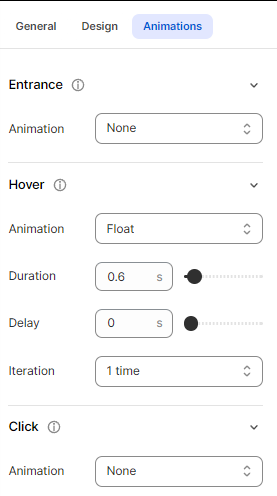
After choosing an animation, set it up to behave how you want. Manage the timing, duration and whether you want it to be repeated, then preview the final result directly from the editor.

{% hint style="success" %}
**Steps:**

1. Click on the relevant element or section.
2. In the I**nspector** panel > **Animations** tab, click the animation type you want to change.
3. Change its settings:

* **Duration:** Set the length of time the animation takes to complete.
* **Delay**: Change the delay for the start of the animation.
* **Iteration**: Set the number of times an animation is played. The default value is 1.
  {% endhint %}

<figure><img src="https://1749964694-files.gitbook.io/~/files/v0/b/gitbook-x-prod.appspot.com/o/spaces%2FfgpgvtRaQLc36GYyIktZ%2Fuploads%2FF8Tq7imxq1O7GvWpFMOX%2Fimage.png?alt=media&#x26;token=0c20896c-578b-4826-8b81-636c3b9fb87a" alt=""><figcaption></figcaption></figure>

<figure><img src="https://1749964694-files.gitbook.io/~/files/v0/b/gitbook-x-prod.appspot.com/o/spaces%2FfgpgvtRaQLc36GYyIktZ%2Fuploads%2FJcsEbiSoNdraHYuCgGY6%2Fimage.png?alt=media&#x26;token=b7ff3624-d34f-4826-8c7a-16d7cb202d6d" alt=""><figcaption></figcaption></figure>