# Pan & Zoom mode

<figure><img src="/files/xiy2R6uI6asgmvwcjAZD" alt=""><figcaption></figcaption></figure>

Easily navigate and preview your pages, especially on large screens or complex layouts. Whether you're fine-tuning your page design or working on detailed sections, this mode helps you view and move around the editor more freely and with precision.

## What is Pan & Zoom mode 🔍

**Pan & Zoom mode** allows you to:

* **Zoom in/out** of the canvas to see more or fewer page details.
* **Pan** (drag) across different parts of your page without scrolling.
* Get better control over layout adjustments, especially helpful when working on large desktop views or zoomed-out perspectives.

## How to enable Pan & Zoom mode ⚙️

You can toggle this feature directly in the **Foxify Editor**:

{% hint style="success" %}
Steps:

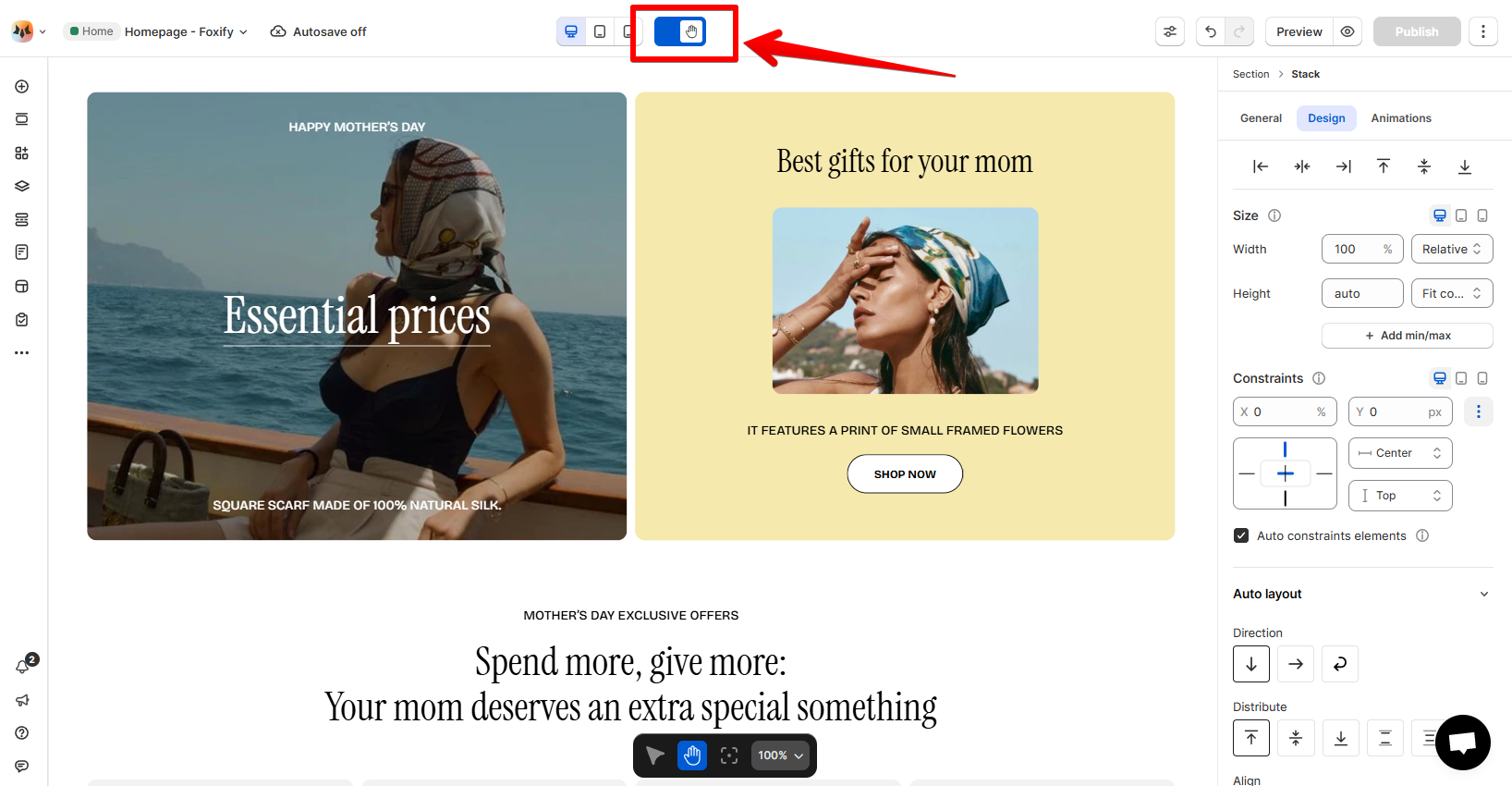
In the Top bar of the editor, toggle to turn on the Pan & zoom mode.

![](/files/ypMH5LY0zRcBoa1fujiu)

or

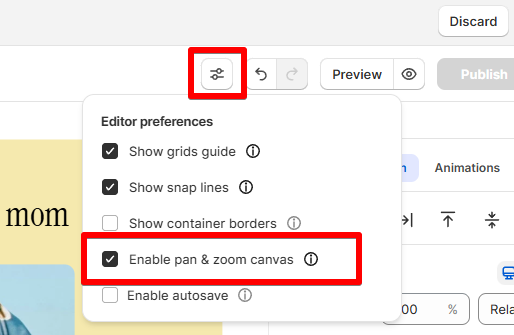
Click the **Editor preferences** icon, select the option **Enable pan & zoom mode.**

![](/files/FbxyFXIDRbSmWOm9BtvR)

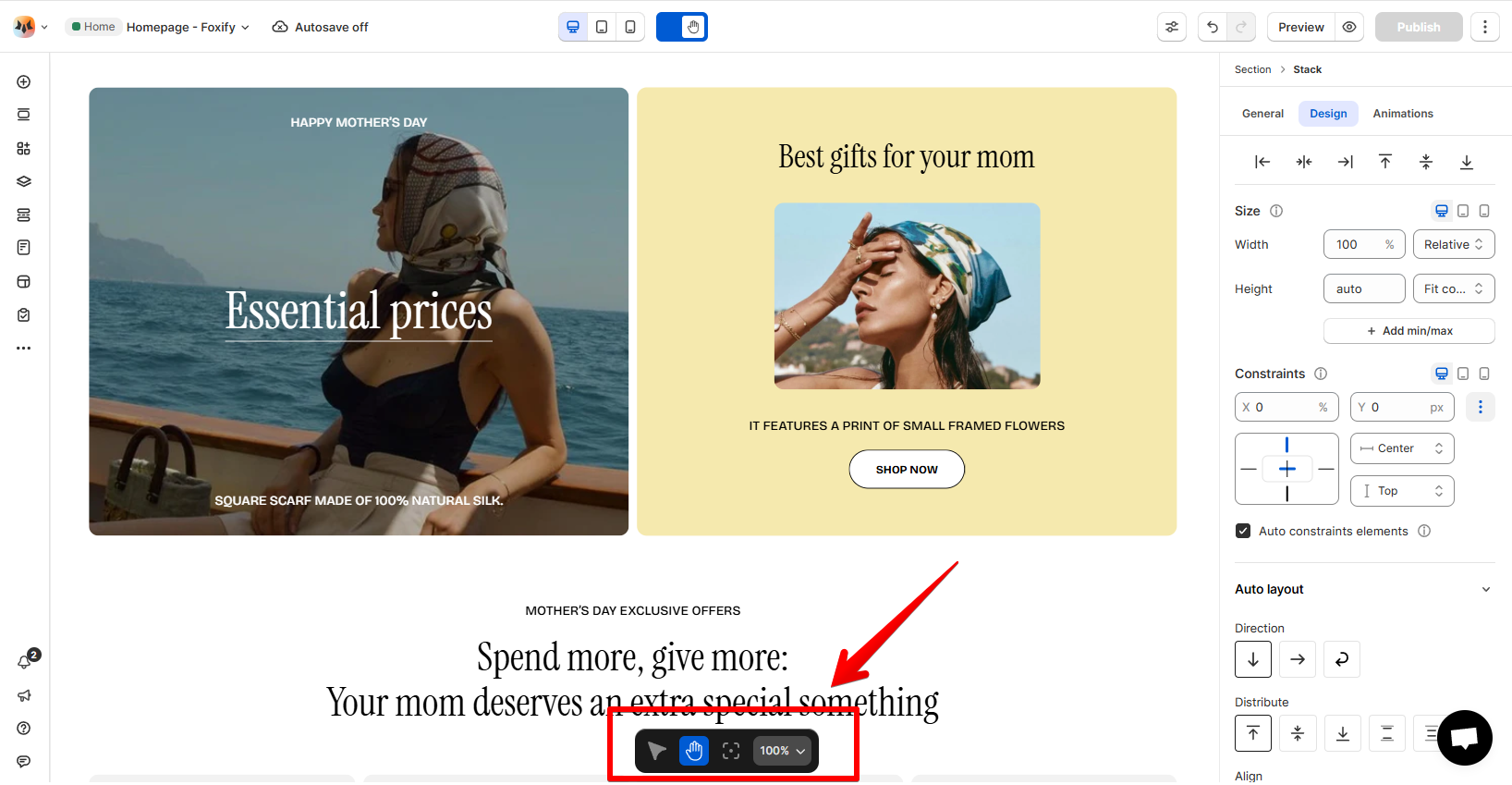
Once enabled, you'll see the **Zoom Toolbar** appear at the bottom center of the canvas.&#x20;
{% endhint %}

<figure><img src="/files/ji6zGahTDTJjDYLhbSHg" alt=""><figcaption></figcaption></figure>

## How it works 🖱️

### Move around your canvas easily

* **Hand tool:** Click the **hand icon** 🖐️ in the toolbar to enable pan mode.
* **Mouse navigation:**
  * **Click and drag** to pan across the canvas
  * **Scroll** to pan vertically (up and down)

{% hint style="info" %}
Hold down the **Spacebar** to temporarily switch to the hand tool.
{% endhint %}

### Zoom in and out like a pro&#x20;

When you first open the editor, the canvas loads at **Zoom to 100%** by default.&#x20;

{% hint style="success" %}
Keyboard shortcuts & scroll:

* **Ctrl + scroll up** / **Cmd + scroll up** → Zoom in
* **Ctrl + scroll down** / **Cmd + scroll down** → Zoom out
  {% endhint %}

#### Zoom menu options:

* Choose **Zoom to fit** to view the entire design area in one frame.

<figure><img src="/files/I2ZWnWLXFPfgNHnHGvph" alt=""><figcaption></figcaption></figure>

* Select **Zoom to 100%** to return to actual size.

<figure><img src="/files/aFiaOTytQwhyXLGekQ9R" alt=""><figcaption></figcaption></figure>

* **Snap to center top:** Click this option to **instantly scroll to the top of your design** while maintaining your current zoom level.

## Best practices ✅

* Keep your **browser zoom at 100%** for full access to editing tools and best performance.
* Use **Zoom to fit** before publishing to quickly review your full design layout.

<div data-full-width="false"><figure><img src="/files/kcilvHtHzK8t5VOGf1nR" alt=""><figcaption><p>Foxify AI turns a prompt into a well-structured page layout in seconds. <a href="https://admin.shopify.com/apps/foxify-builder?utm_source=foxecom&#x26;utm_medium=help_center_foxify_pan_zoom_mode&#x26;utm_campaign=anchor-text&#x26;utm_term=try-foxify-ai"><mark style="color:orange;">Try Foxify AI</mark></a> ✨</p></figcaption></figure></div>


---

# Agent Instructions: Querying This Documentation

If you need additional information that is not directly available in this page, you can query the documentation dynamically by asking a question.

Perform an HTTP GET request on the current page URL with the `ask` query parameter:

```
GET https://docs.foxecom.com/foxify-app/foxstudio/editor-tools/pan-and-zoom-mode.md?ask=<question>
```

The question should be specific, self-contained, and written in natural language.
The response will contain a direct answer to the question and relevant excerpts and sources from the documentation.

Use this mechanism when the answer is not explicitly present in the current page, you need clarification or additional context, or you want to retrieve related documentation sections.