# Manage page layers and element order
## What is the Page layers panel?
The Page layers panel displays all sections and elements on your page in a hierarchy, from top to bottom. It reflects exactly what's on your canvas — when you move a layer in the panel, the element moves on the page too.
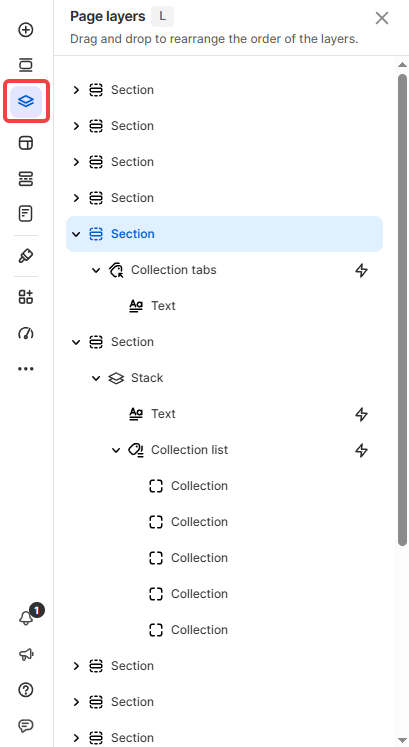
Use it when you need to select, reorder, or manage elements that are hard to click on directly — for example, elements stacked on top of each other, or elements nested deep inside a section.
To open: Click **Layers** in the left sidebar, or press **L**.
## What's inside?
Each row in the Page layers panel is one element or section. Elements placed inside another section or container appear underneath it and can be expanded or collapsed.
Two visual indicators to know:
* **⚡ icon** next to a layer name — that element has an animation enabled

* **Dimmed name** — that element is hidden on the current view (visibility off)

## Common tasks
* **Select an element that's hard to click on the canvas:** Open Layers → click the layer name directly. The element gets selected on the canvas instantly.
* **Reorder elements or sections:** Drag a layer up or down in the panel. The element moves to the new position on the page.
* **Rename, duplicate, or export an element:** Click the layer name → click the **More actions** icon (⋯) next to it → choose the action you need.
* **Check if an element is hidden or has an animation:** Look for the dimmed name (hidden) or ⚡ icon (animated) without opening the Inspector panel.
## Tips
* **Reordering in Layers \= reordering on canvas:** Dragging a layer changes its actual position on the page — not just the panel view.
* **Use Layers to navigate complex pages:** On pages with many nested elements, the canvas gets hard to click accurately. Layers panel is faster for selecting exactly what you need.
## Related resources
Inspector panel
Animations