# Reuse headers and footers with layout templates
Layout templates let you design a header and footer once, then use them on any Foxify page. When you update a layout template, every page using it updates automatically.
The number of published layout templates depends on your plan. Go to **Plans & Pricing** on your app dashboard to see your limit.
## When to use layout templates
Use Layout templates when you need a header or footer that's different from your Shopify theme's default — without rebuilding it on every page.
Best fits for:
* A campaign landing page with a simple header, just your logo with no full menu.
* A seasonal promo page, like Black Friday, with a branded header.
* A lead capture page without the default footer, so visitors focus on signing up.
### How is this different from just adding a section to a page?
## Create a layout template
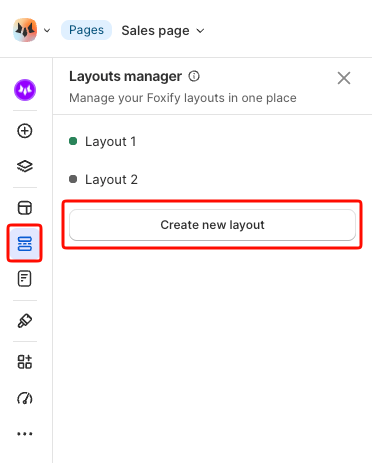
1. In the FoxStudio editor, select **Manage layout templates** in the left sidebar.
2. Select **Create new layout**.
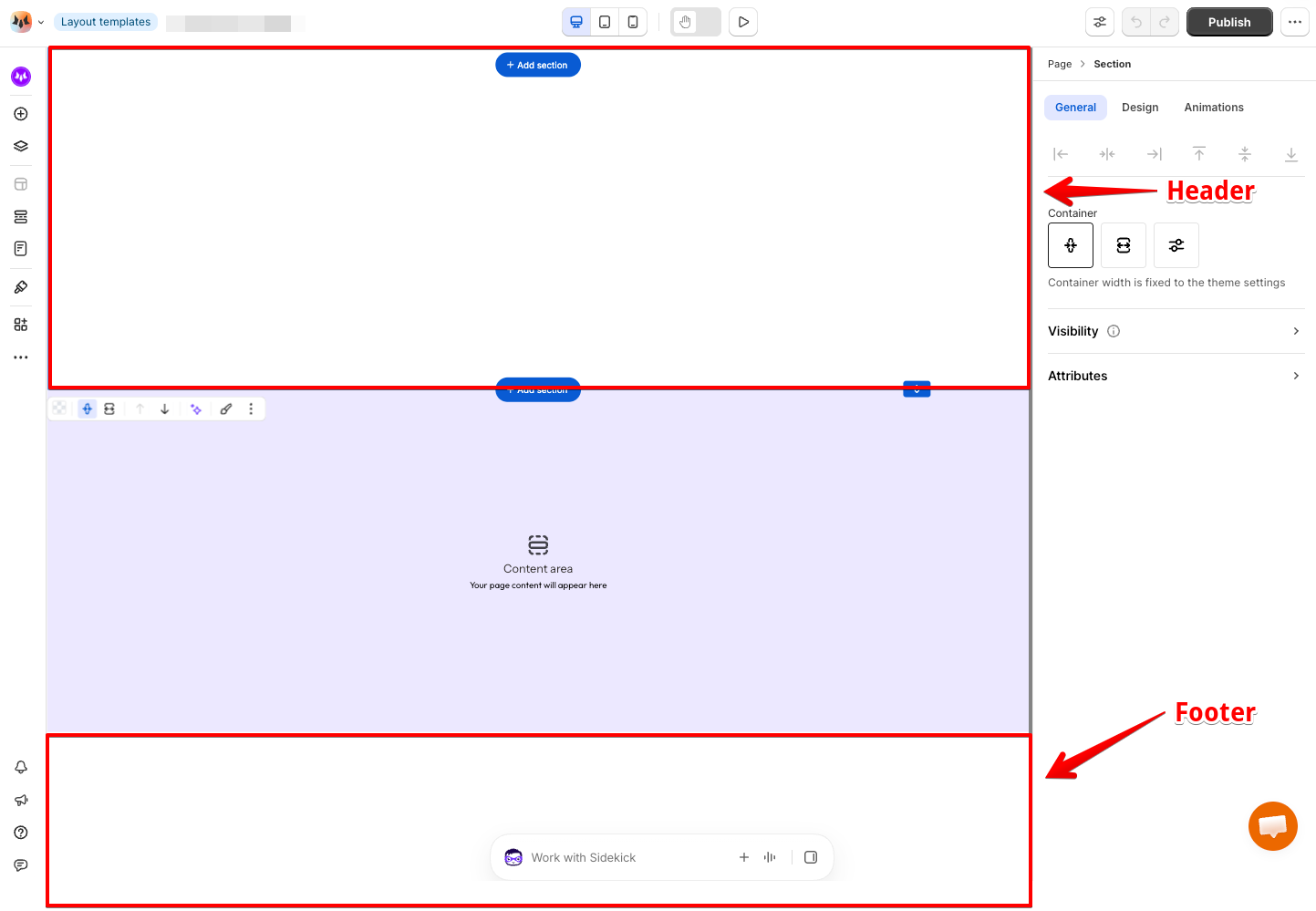
3. Add sections or elements:
The Content area is where each page's own content appears. You can design the header and footer like any other Foxify page. See [Add and edit elements](https://docs.foxecom.com/foxify-app/foxstudio/add-and-edit-elements)
* **Above** the **Content area** for your header.
* **Below** the **Content area** for your footer.
4. Select **Save & Publish**. Only published layout templates show on your live pages.
## Apply a layout template to a page
1. Open the page in FoxStudio, navigate to **Page settings**.
2. Under **Layout template**, select your layout template.
3. Click **Update**.
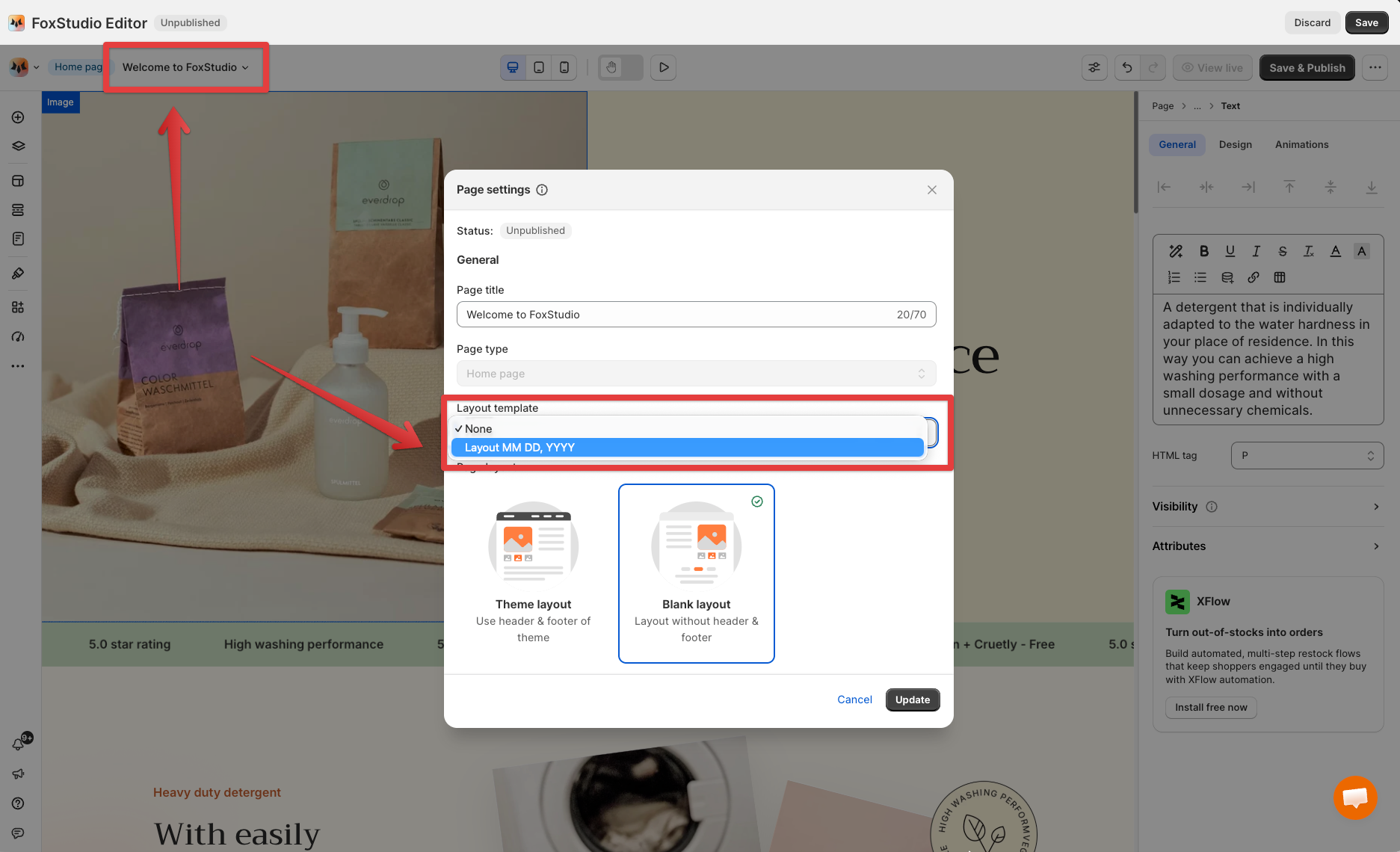
**Expected result**: Your page now shows your custom header and footer. Any future edits to this layout template automatically update all pages using it.
Set the page's layout to **Blank layout** when applying a **Layout template**. This prevents your theme's default header/footer from showing at the same time.
See how to set your page layout: [Configure page settings](https://docs.foxecom.com/foxify-app/foxstudio/page-customization/page-settings)
## Manage layout templates
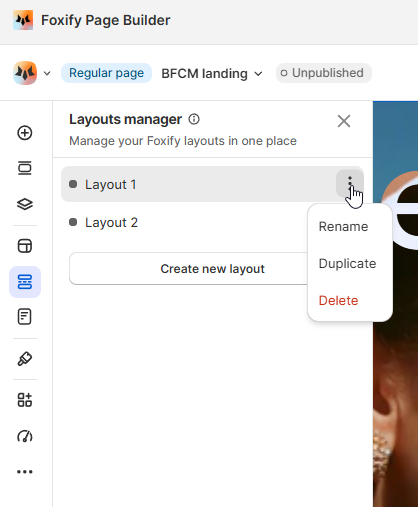
In **Manage layout templates**, select the **More actions** icon (⋯) next to a layout:
| Action | When to use |
| ------------- | ------------------------------------------------------------------------------------------------------------------------------------------------------------- |
| **Rename** | Give it a clear name |
| **Duplicate** | Start a new layout from an existing one — useful for seasonal variations |
| **Delete** | Remove unused layouts. Cannot be undone.
Before deleting: If the layout is applied to any pages, you'll be prompted to reassign those pages first. |
Each layout template shows its status:
* **Published:** shows on live pages.
* **Unpublished:** only visible in the editor.
## FAQs
#### Can I apply the same layout to multiple pages?
Yes — one template can be used across as many Foxify pages as you want.
#### If I edit a live template, do changes apply immediately?
Yes. All pages using that template update automatically when you save and publish.
#### How do I go back to my theme's default header and footer?
Open **Page settings** → set **Layout templates** to **None** → switch **Page layout** back to **Theme layout**.
#### How many layout templates can I have?
The limit depends on your plan. Go to **Plans & Pricing** page to see your current limit.
## Related resources
Page customization
Layout & styling
Add and edit elements