# Grids guide and Snap lines

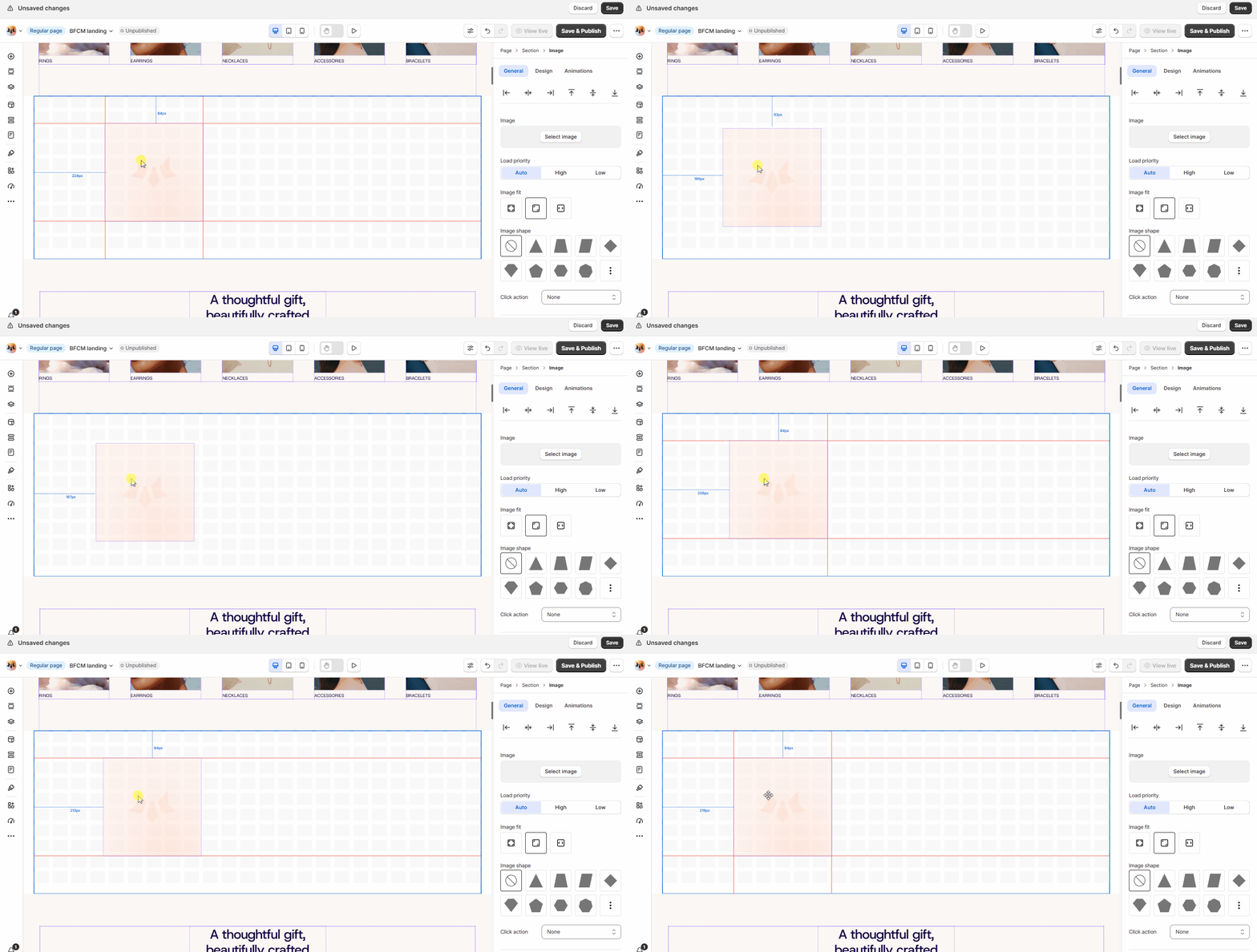
You can use grid guides and snap lines to better arrange and align objects on a page. They appear as nonprinting lines and are useful for laying out elements symmetrically.

By default, these editor tools are enabled for your editor.

<figure><img src="/files/DyWhI5IpchPxJIvXRROe" alt=""><figcaption></figcaption></figure>

## Understanding the Grids guide in Foxify Page Editor

The **Grids guide** is a visual aid in the Foxify Page Builder that helps designers align elements accurately within a layout.&#x20;

When activated, it overlays a grid pattern onto the page, serving as a framework to organize your content consistently and symmetrically.

<figure><img src="/files/uej6iwxhzyL7wSeJsAjV" alt=""><figcaption></figcaption></figure>

## Understanding the Snap lines in Foxify Page Editor

**Snap Lines** helps you get a precise alignment of elements on your page.&#x20;

As you move elements within your canvas (such as text, images, or buttons), the **Snap Lines** will appear automatically, helping you align elements relative to one another or to the Grids guide.

<figure><img src="/files/8fFi5OQqyX78dSJtQaWR" alt=""><figcaption></figcaption></figure>

## How to enable or disable Grids guide and Snap lines

{% hint style="success" %}
Steps:

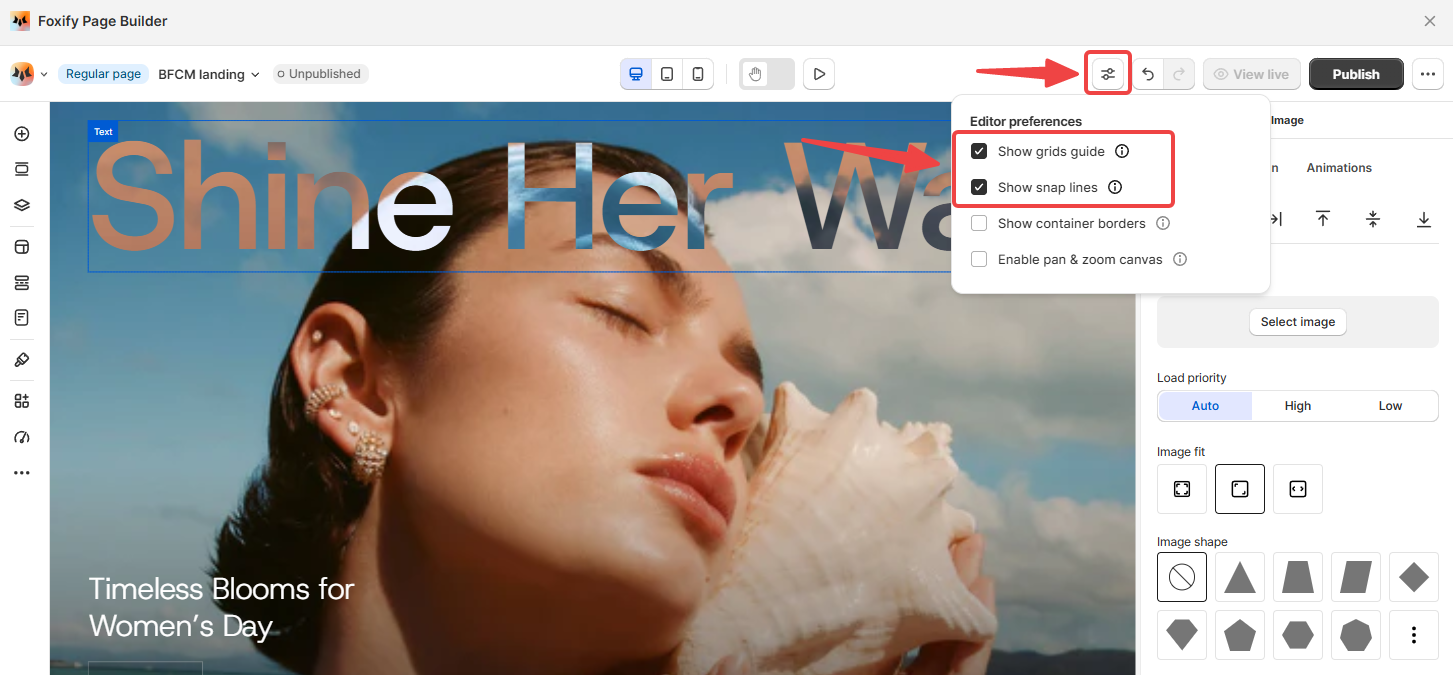
1. In the Editor, open the **Editor preferences.**
2. Check/uncheck the option:

* **Show grids guide**: To enable/disable the grids guide on the editor's canvas.
* **Show snap lines**: To enable/disable snap lines when dragging.
  {% endhint %}

<figure><img src="/files/JCPWuFInGOQKz90ALXiz" alt=""><figcaption></figcaption></figure>

{% hint style="info" %}
The snap lines will be disabled automatically when the grids guide is disabled.
{% endhint %}

## Best practices

* Align key elements (e.g., headers, images, and call-to-action buttons) to the grid lines for a clean, professional layout.
* Combine the **Grids Guide** with **Snap Lines** to ensure that objects not only follow the grid but also align with other nearby objects.
* Regularly preview your page across different devices (desktop, tablet, mobile) to ensure the grid-based layout looks good on all screen sizes.

<div data-full-width="false"><figure><img src="/files/kcilvHtHzK8t5VOGf1nR" alt=""><figcaption><p>Foxify AI turns a prompt into a well-structured page layout in seconds. <a href="https://admin.shopify.com/apps/foxify-builder?utm_source=foxecom&#x26;utm_medium=help_center_foxify_grids_guide_and_snap-lines&#x26;utm_campaign=anchor-text&#x26;utm_term=try-foxify-ai"><mark style="color:orange;">Try Foxify AI</mark></a> ✨</p></figcaption></figure></div>


---

# Agent Instructions: Querying This Documentation

If you need additional information that is not directly available in this page, you can query the documentation dynamically by asking a question.

Perform an HTTP GET request on the current page URL with the `ask` query parameter:

```
GET https://docs.foxecom.com/foxify-app/foxstudio/editor-tools/grids-guide-and-snap-lines.md?ask=<question>
```

The question should be specific, self-contained, and written in natural language.
The response will contain a direct answer to the question and relevant excerpts and sources from the documentation.

Use this mechanism when the answer is not explicitly present in the current page, you need clarification or additional context, or you want to retrieve related documentation sections.